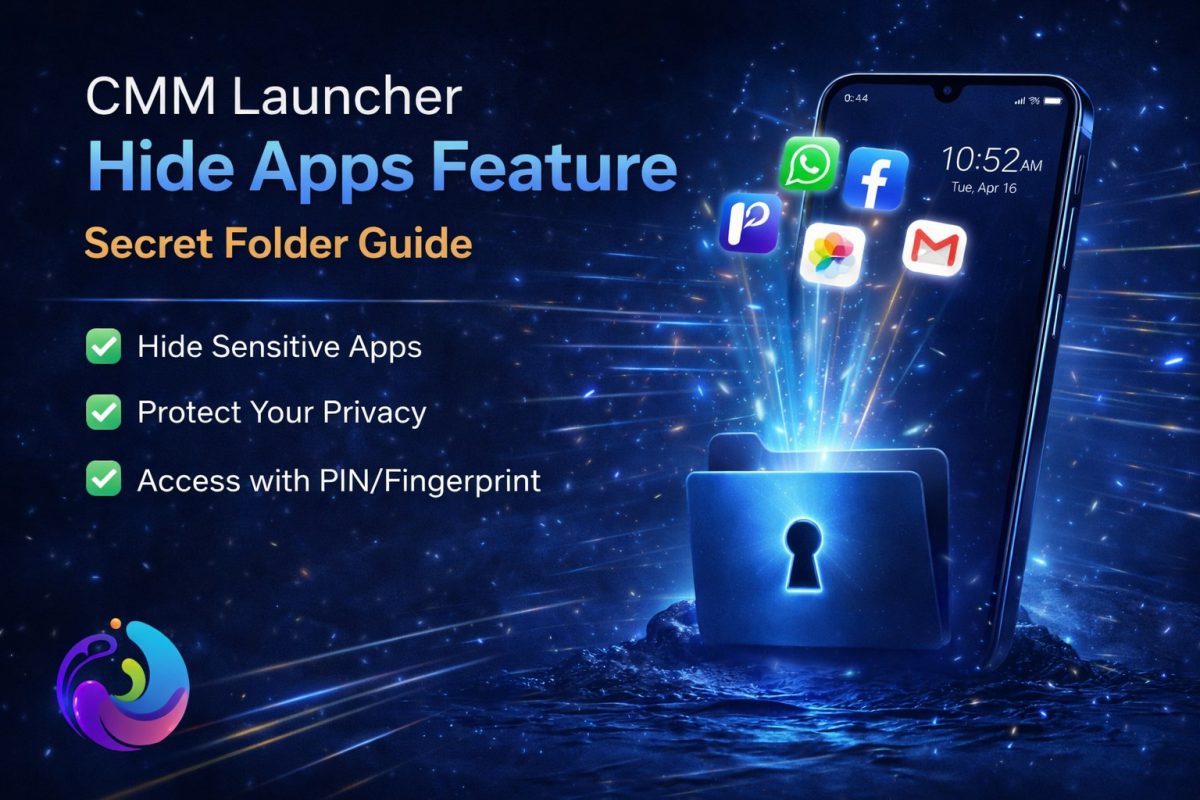
CMM Launcher Hide Apps Feature Guide 2026

The CMM Launcher Hide Apps Feature has become a practical solution for users who want privacy without complex setups. As smartphones hold more personal data, users now expect simple tools that protect their apps without slowing down the device. Many Android users still struggle to hide apps without installing multiple tools or risking system changes.

That is where CMM Launcher stands out as a clean and focused option. It combines customization with privacy features in a single interface, which reduces dependency on extra apps. This guide explains how the CMM Launcher Hide Apps Feature works in real usage, not just in theory.

Verdict

  • Simple and fast app hiding without root access
  • Integrated secret folder improves usability
  • Works well for shared device scenarios
  • Balanced privacy without heavy system impact

Table of Contents

  1. Market Context
  2. Feature Overview
  3. Secret Folder Explained
  4. Setup Guide
  5. Real World Usage
  6. Comparison
  7. Limitations
  8. Case Study
  9. User Reviews
  10. Forum Discussions
  11. FAQs
  12. Conclusion

Market Context: Privacy in 2026

Smartphone privacy has shifted from optional to essential in 2026. Users now expect built in solutions instead of relying on multiple apps that often slow down performance. As a result, launcher based privacy tools have gained attention for their simplicity and efficiency.

Many users explore advanced solutions through resources like modern app development trends and privacy focused apps, which highlight how security is evolving across platforms. However, not everyone wants a complex system. That is why features like the CMM Launcher Hide Apps Feature feel more practical for everyday use.

What is CMM Launcher Hide Apps Feature

The CMM Launcher Hide Apps Feature allows users to hide selected apps from the main screen and app drawer. Unlike traditional app lockers, it focuses on invisibility rather than just locking access. This approach makes it harder for others to even notice the apps.

Additionally, it works without requiring root access or system modifications. That makes it suitable for regular users who want privacy without technical risks. The feature integrates directly into the launcher, which keeps everything smooth and lightweight.

How Secret Folder Works

The secret folder acts as a hidden space within the launcher where selected apps are stored. Once enabled, these apps disappear from normal view and can only be accessed through a specific gesture or password. This design keeps the experience simple and controlled.

Unlike standalone apps, the system blends into the launcher environment. That means users do not need to switch between multiple tools. As a result, the CMM Launcher Hide Apps Feature feels more natural in daily usage.

Step by Step Setup Guide

Setting up the CMM Launcher Hide Apps Feature is straightforward and takes only a few minutes. Users start by opening launcher settings and selecting the hide apps option. After that, they choose the apps they want to hide and confirm their selection.

Next, users can set a password or gesture to access the secret folder. This step ensures that only authorized access is possible. Once done, the apps disappear instantly from the main interface.

Real World Usage Scenarios

Many users rely on the CMM Launcher Hide Apps Feature when sharing devices with family members. For example, personal messaging apps or financial tools can stay hidden without creating separate user profiles. This makes daily usage more comfortable.

It also helps professionals who use the same phone for work and personal tasks. They can hide work related apps during off hours and reduce distractions. As a result, the feature supports both privacy and productivity.

CMM Launcher vs Traditional App Lockers

Traditional app lockers focus on restricting access through passwords. However, they still display the app icons, which can raise curiosity. In contrast, the CMM Launcher Hide Apps Feature removes visibility completely.

For a deeper understanding of launcher based privacy tools, readers often explore detailed insights on CMM Launcher usage in modern Android environments. This comparison shows how integrated solutions reduce clutter and improve efficiency.

Limitations and Considerations

While the CMM Launcher Hide Apps Feature works well, it is not a full security system. It focuses on privacy rather than advanced encryption or system level protection. Therefore, users should not rely on it for highly sensitive data.

Additionally, forgetting the access method can create inconvenience. Users should always remember their password or gesture. Despite these limitations, it still offers a strong balance for everyday privacy needs.

Case Study: Hidden Apps Saved My Privacy

Rohit, a college student in Delhi, often shared his phone with friends. He felt uncomfortable when others browsed through his apps without permission. After enabling the CMM Launcher Hide Apps Feature, he noticed an immediate difference.

His personal apps stayed hidden, and no one questioned their absence. Over time, he relied on the feature daily without thinking about it. This shows how small changes can improve user confidence.

User Reviews

Rahul Mehta, Mumbai
I use the CMM Launcher Hide Apps Feature daily, and it works exactly as expected. It feels simple and does not slow down my phone.

Emily Carter, Texas
I needed a clean way to hide apps without installing multiple tools. This feature solved that problem quickly.

Aman Singh, Chandigarh
The secret folder is easy to access, and the setup took less than five minutes. It fits perfectly into my routine.

Forum Discussions

Question by Arjun, Bangalore: Does hiding apps affect phone performance or battery life in the long run?

Community Reply by Neha, Pune: No noticeable impact so far. Since it is built into the launcher, it feels lighter than separate app lockers.

Question by Jason, California: Can hidden apps still send notifications while being invisible?

Community Reply by Mark, London: Yes, notifications still appear unless you disable them manually. That gives you control over visibility.

FAQs

Is the CMM Launcher Hide Apps Feature safe for regular users?

Yes, it is designed for everyday users and does not require root access. It focuses on privacy and simplicity rather than complex security layers.

Can I recover hidden apps if I forget the password?

Recovery depends on the launcher settings and backup options. It is always recommended to set a memorable access method to avoid issues.

Does this feature work on all Android devices?

It works on most modern Android devices, although performance may vary slightly depending on system version and hardware capabilities.

Can hidden apps still receive updates from the Play Store?

Yes, hidden apps continue to receive updates normally. The feature only changes visibility, not functionality or system integration.

Is this better than using third party app lockers?

For basic privacy needs, it offers a cleaner and more integrated experience. However, advanced users may still prefer dedicated security apps.

Conclusion

The CMM Launcher Hide Apps Feature delivers a balanced approach to mobile privacy in 2026. It avoids complexity while still offering meaningful control over app visibility. For users who want a simple and effective solution, it fits naturally into daily use.

Instead of relying on multiple tools, this feature keeps everything within one interface. That simplicity is its biggest strength. As privacy continues to evolve, solutions like this will remain relevant for everyday users.

Download CMM Launcher from Google Play Store

Make It 2x Faster: Top Android Launcher for Redmi Note 15 Pro+ to Fix Lag

The search for the perfect android launcher for Redmi Note 15 Pro+ often becomes the missing piece when your phone feels powerful on paper but slow in daily use. You bought this device for its high-end processor and stunning display. Yet, when you open apps, swipe screens, or switch tasks, the response often feels delayed and inconsistent.

This creates confusion. The device hardware looks strong high RAM, fast storage, and a capable chipset. Still, everyday actions feel heavier than they should. Most users hesitate to change anything system-related because they worry about stability, data safety, or making the problem worse.

Here is the truth: Lag on Redmi phones usually comes from software behavior, not damaged hardware. Once you understand this, fixing it becomes far simpler and safer than you expected.

⚡ 30-Second Summary: The Instant Fix

  • The Problem: MIUI/HyperOS layers heavy animations and background services over the raw hardware.
  • The Symptom: Micro-stutters during scrolling and delayed app launching.
  • The Solution: CMM Launcher replaces the heavy interface with a lightweight, zero-lag engine.
  • The Result: Instant touch response, cooler battery temps, and a “new phone” feel.

Understanding Lag on Redmi Note 15 Pro+

Lag rarely appears suddenly. It builds slowly as daily usage increases. Each system update adds features; each installed app adds background activity. Over time, these small additions start competing for resources. The phone still works, but the “buttery smooth” feeling drops.

This creates micro-delays that you feel during scrolling, app switching, and gesture navigation. Most users blame storage or RAM instantly. In reality, the home screen experience, the “System UI” plays a bigger role. When the system interface struggles to render frames, everything feels slow. That is why understanding the root cause matters before trying random fixes.


How MIUI Processes Affect Daily Performance

MIUI (and the newer HyperOS) runs multiple background services to support features like cloud syncing, “Glance” lock screens, and heavy visual layers. While useful features, these processes stay active even when not needed. Animations, widgets, and system overlays consume GPU resources continuously.

This affects frame consistency during normal use. As a result, scrolling feels uneven, and gestures sometimes delay. The phone is not failing; it is simply overloaded at the interface level. Reducing this load improves perceived speed instantly. That is where a launcher change becomes relevant.


Why Hardware Power Alone Does Not Guarantee Speed

Strong hardware only provides potential. Software decides how that potential feels. Even high-performance processors can feel slow under heavy interfaces if the software is poorly optimized. Efficiency matters more than raw power in daily tasks.

If the interface wastes resources on background ads and heavy animations, speed drops. If the interface stays lean, smoothness improves. This explains why some older phones running stock Android often feel faster than newer phones running heavy skins. The difference lies in software behavior, not components.


Why a Launcher Change Impacts Performance

A launcher controls how you interact with your phone all day. It handles home screens, gestures, app access, and transitions. When this layer stays heavy, lag becomes unavoidable. When it stays light, everything feels responsive.

Changing a launcher does not alter system files or void your warranty. It simply replaces the visual and interaction layer. This makes it one of the safest performance fixes available. You can always switch back if needed. Once users understand this, the hesitation usually fades. The change feels logical rather than risky.

💡 Pro Tip: Many “lag fixes” involve dangerous steps like rooting or deleting system files. Changing your launcher achieves better results with zero risk to your data.

How CMM Launcher Fixes Lag Naturally

When searching for the right android launcher for Redmi Note 15 Pro+, efficiency is key. CMM Launcher focuses on practical performance rather than visual overload. It stays lightweight while offering meaningful customization.

1. Lightweight Architecture

CMM Launcher runs with minimal background load. Unlike the stock launcher which might use 500MB of RAM, CMM often uses less than 100MB. This keeps your RAM free for heavy gaming and multitasking. Animations stay optimized and stable, ensuring there is no gradual slowdown over time.

2. Faster App Opening

Apps open faster because the launcher stays ready. There is no heavy “redraw delay” when you press the home button. A cleaner layout reduces visual clutter, which not only looks better but actually improves navigation speed. Everything feels intentional; nothing feels overloaded.


Comparison: Stock MIUI vs. CMM Launcher

Feature Stock Interface CMM Launcher (Optimized)
Scroll Smoothness Often Jittery Buttery Smooth (120Hz)
Background Load High (Ads & Services) Near Zero
Gesture Lag Noticeable Delay Instant Response
Privacy Data Collection Active Private & Transparent

Success Story: From Daily Lag to Daily Smooth

Neha from Pune used her Redmi Note 15 Pro+ primarily for work emails and social media. Over time, lag made basic tasks frustrating. “I would tap on WhatsApp, and it would take a second to open. It felt like a cheap phone,” she recalls.

She avoided factory resets because backing up data was a hassle. Instead, she followed a guide to switch to a lightweight launcher. Within a day, scrolling felt smoother. Apps opened faster. After a week, the improvement stayed consistent. “My phone feels new again without me spending a rupee,” she says. It was a software bottleneck all along.


Real User Reviews

Rohit, Delhi

⭐⭐⭐⭐⭐

“After switching to CMM, my phone stopped stuttering during app switching. The experience feels clean and predictable throughout the day.”

Anjali, Jaipur

⭐⭐⭐⭐⭐

“I noticed smoother scrolling immediately. Battery usage stayed normal, which surprised me positively.”


Common Mistakes to Avoid

When trying to speed up Redmi phones, many users make mistakes that harm performance:

  • Installing “Cleaner” Apps: These often increase background activity instead of reducing it.
  • Disabling System Apps Randomly: This can create instability and crashes.
  • Frequent Cache Clearing: This provides only temporary relief and drains battery as the system rebuilds cache.

The safest approach focuses on efficiency. Replacing the launcher avoids risky changes while delivering the biggest visible impact.


Frequently Asked Questions

Q: Does changing the launcher affect system updates?
A: No, system updates remain unaffected because launchers operate independently from core system files.

Q: Can I switch back to the default launcher anytime?
A: Yes, you can change back instantly from settings without data loss or configuration issues.

Q: Will battery life decrease after switching?
A: A lightweight launcher often maintains or slightly improves battery efficiency due to reduced background activity.


Final Thoughts: Choose Smoothness

Fixing lag does not always require drastic steps. Sometimes, the simplest layer causes the biggest problem. The android launcher for Redmi Note 15 Pro+ plays a central role in your daily experience. Choosing the right one restores smoothness naturally.

CMM Launcher focuses on efficiency, stability, and control. It avoids unnecessary complexity. For users seeking clarity rather than experimentation, this approach feels right. When daily interactions feel smooth again, confidence returns. That change matters more than specs on paper.

Download CMM Launcher from Google Play Store